Send the meeting bot to Zoom, Meet or Teams
Send a notetaker into a Zoom, Google Meet or Microsoft Teams call. It records the meeting and Kolasys writes the notes when it ends.
Send the bot to a call
- Go to Meetings and click New Recording.
- Type a Title. If you like, pick a Notes template; otherwise it’s chosen automatically.
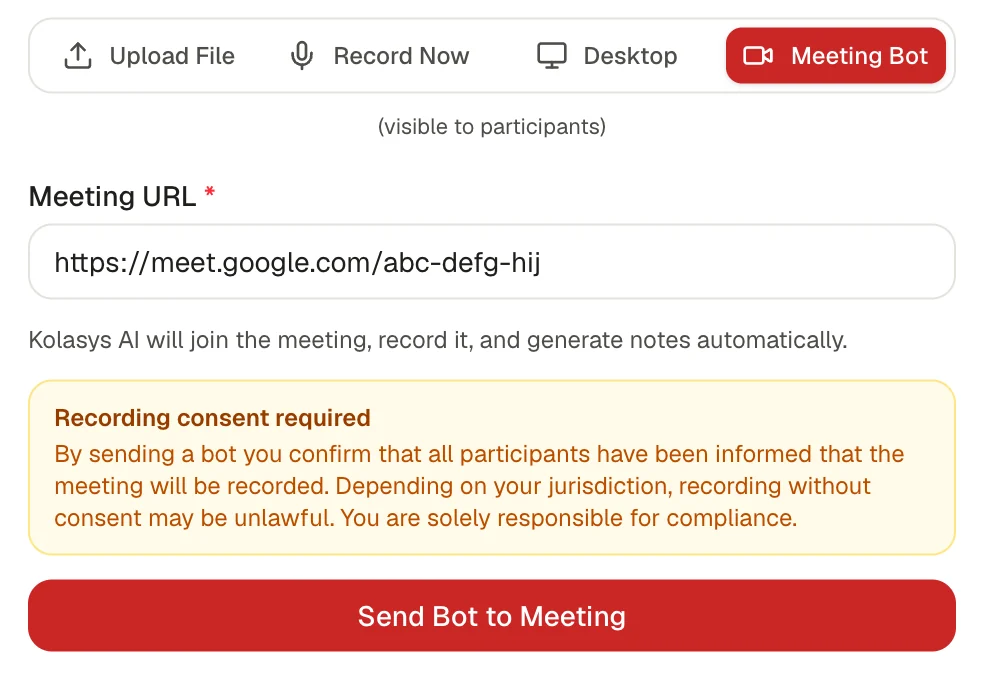
- Click the Meeting Bot tab and paste the call’s link into Meeting URL.
- Read the Recording consent required notice, then click Send Bot to Meeting.
The bot heads to the call straight away, so send it once the meeting is about to start.
Send it to a meeting on your calendar
With your calendar connected (see Connect your calendar):
- On the Calendar page (Settings › Calendar › Open calendar), click Send Bot next to a meeting with a video link.
- Or open the meeting from Coming up on Home and click Send bot.
- Or let it go to every calendar meeting on its own. See Record calendar meetings automatically.
What people see in the call
- The bot joins as a participant called Kolasys AI, unless your workspace gave it another name.
- It posts a message in the meeting chat saying the meeting is being recorded, and for whom.
- If the call has a waiting room, someone in the meeting has to let it in.
- In Zoom, the host may also have to allow it to record.
Follow the bot’s status
On the Meetings list and on the meeting’s page, the status shows where the bot is:
- Joining, Waiting to be let in, In the call (not recording yet) or Recording.
- Not let in or Recording not allowed: nothing was recorded.
- Meeting ended: the notes are on their way.
If it never got in, see The meeting bot didn’t join. A bot that was never let in doesn’t count toward the Free plan’s 3 meetings a month.
Stop the bot
There’s no button in Kolasys to make the bot leave. It leaves by itself when the meeting ends. To stop it earlier, remove it from the call in Zoom, Meet or Teams, like any other participant.
Change the bot’s name and picture
Custom names and pictures need the Team plan. In Settings › Calendar:
- Workspace default name is used for anyone who hasn’t set their own. Only workspace owners and admins can change it.
- Under Bot Identity, Your bot name replaces it for meetings you record, and Bot camera frame (Upload logo) shows your logo or photo as the bot’s video.
Was this helpful?
Still need help?
Email hi@kolasys.ai from the address on your account and we’ll reply by email.