The meeting bot didn’t join
Why the Kolasys AI bot missed a meeting or wasn’t let in, and how to get it into the next one.
Quick checks
- The meeting is on a calendar connected in Settings › Calendar, and that calendar shows Connected.
- The calendar event has a Zoom, Google Meet or Microsoft Teams link.
- Automatically record meetings is on in Settings › Calendar. Only owners and admins can turn it on.
- Look for the meeting on Meetings. If the bot tried to join, its page says what happened.
The bot tried but didn’t record
The meeting’s page shows one of these instead of notes:
- Not let in: the meeting has a waiting room or lobby and nobody admitted the bot. While it waits it shows Waiting to be let in; someone in the call has to let it in.
- Recording not allowed: the host refused the bot permission to record, so it left.
- Meeting didn’t start: the call never started while the bot was waiting.
- Couldn’t join or Didn’t record: the bot couldn’t get into the call, or got in and heard nothing.
The bot never showed up
Automatic recording is off
Ask an owner or admin to turn on Automatically record meetings in Settings › Calendar. It applies to the whole workspace. See Record calendar meetings automatically.
Your calendar connection expired
See My calendar isn’t syncing.
The event has no video link
The bot only joins Zoom, Google Meet and Microsoft Teams calls, using the link in the calendar event. On the calendar page these meetings show No video link. Add the link to the event, or send the bot by hand.
You declined the event
The bot skips meetings you declined on your calendar.
The meeting was added at the last minute
The bot joins about a minute before the start. An event created, or given its link, after the meeting had already started may be missed. Send the bot by hand.
You’ve used this month’s Free meetings
Once a Free workspace has recorded 3 meetings this month, the bot stops joining until the 1st. See I hit the Free plan limit.
The bot joined, but the meeting isn’t in your list
When several people in your workspace are invited to the same meeting, one bot joins, and the meeting belongs to the organizer if they’re in your workspace. Unless they share it, it’s private to them. Ask them to share it, or see Who can see a meeting.
Send the bot now
- On Meetings, click New Recording and choose the Meeting Bot tab.
- Give it a title, paste the call’s link into Meeting URL, and click Send Bot to Meeting.
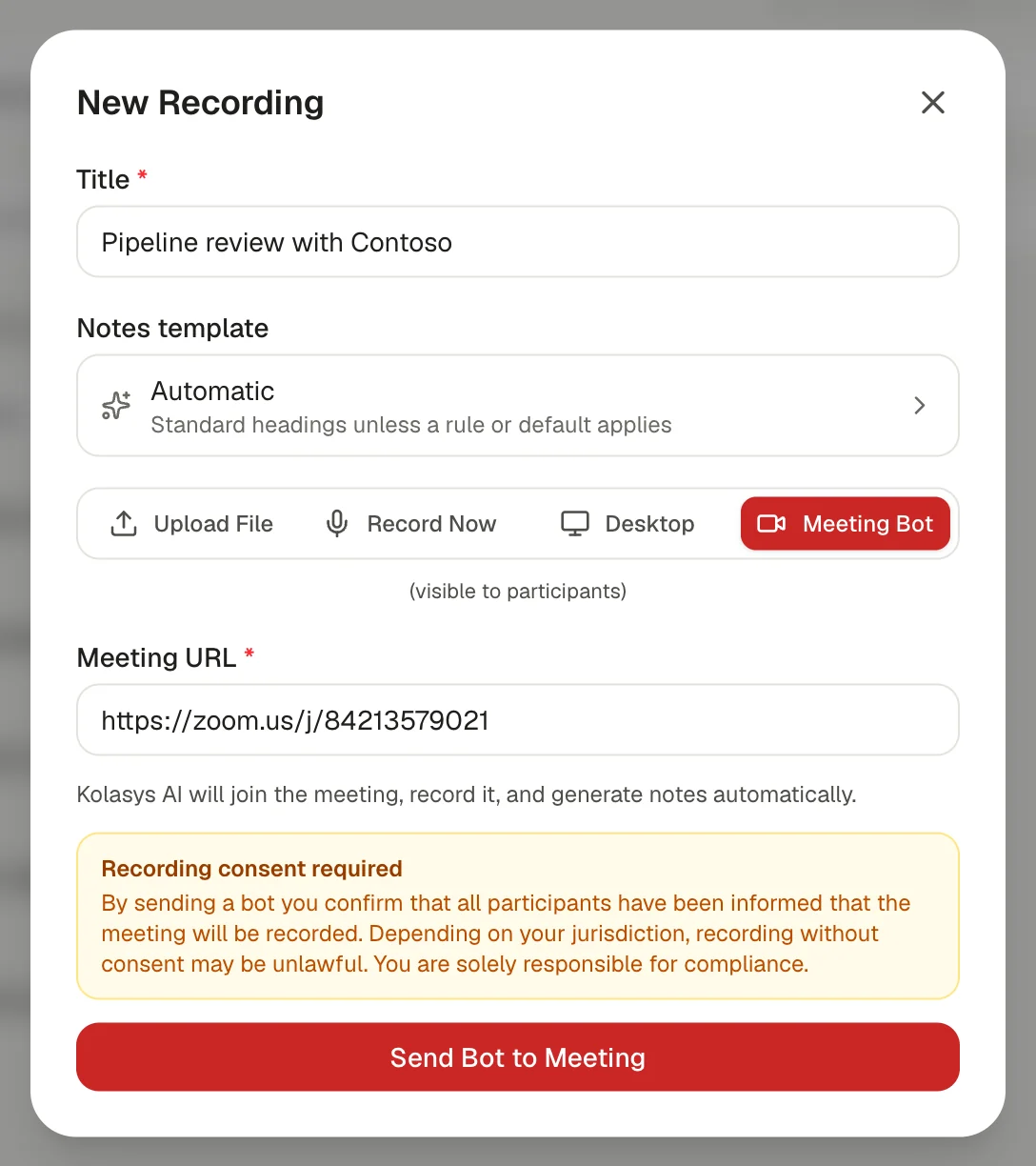
Or open the meeting from Coming up on Home and click Send bot. See Send the meeting bot to Zoom, Meet or Teams.
Was this helpful?
Still need help?
Email hi@kolasys.ai from the address on your account and we’ll reply by email.