Upload a recording or Voice Memo
Upload an audio or video file you already have, such as a Voice Memo or a Zoom recording, and get a transcript and notes.
Upload with a title and language
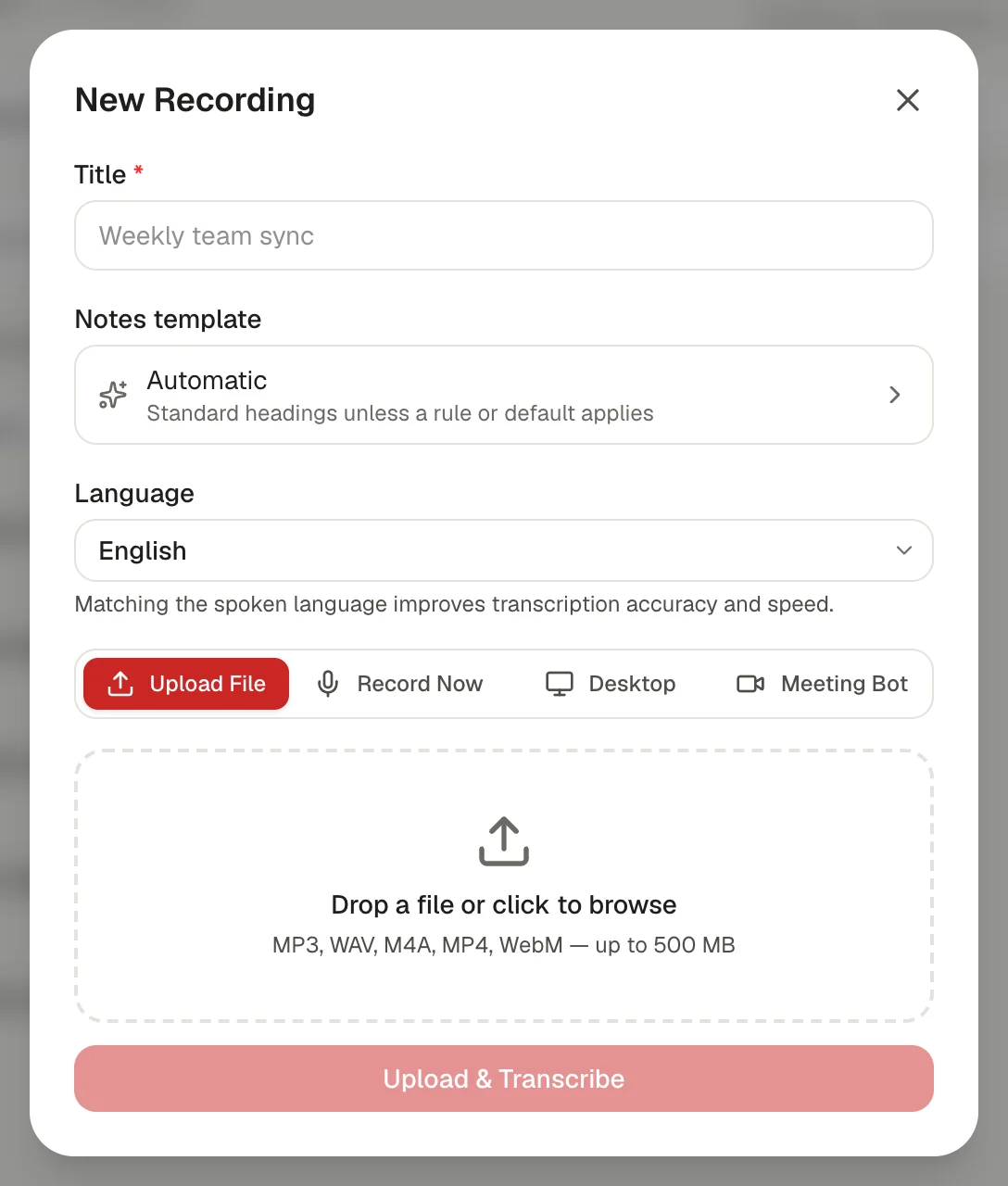
- Go to Meetings and click New Recording.
- Type a Title, and pick a Notes template and the Language spoken if you like.
- On the Upload File tab, drop the file in, or click to choose it.
- Click Upload & Transcribe. Keep the window open until it closes.
Quick upload
On the Meetings page, click Upload audio or Voice Memo and pick an audio file. It’s named after the file and transcribed in your workspace’s default language. A bar at the bottom shows the progress until Upload complete — transcription queued.
From your iPhone
- With the Kolasys AI app: in Voice Memos (or Files), share the recording and choose Kolasys AI. Then open the Kolasys app to finish the upload.
- In Safari on the web app: tap Upload audio or Voice Memo, then Choose File › On My iPhone › Voice Memos.
See Record on iPhone and Apple Watch.
File types and size
- New Recording: MP3, WAV, M4A, OGG, MP4, WebM and MOV, one file at a time, up to 500 MB.
- Upload audio or Voice Memo: audio files (MP3, M4A, WAV, AAC, OGG, FLAC, CAF and audio-only MP4), up to 500 MB.
Was this helpful?
Still need help?
Email hi@kolasys.ai from the address on your account and we’ll reply by email.