Before · During · After
Everything Kolasys does, start to finish
Prep before the call, record it without a bot, and walk out with notes, decisions and owners. Every example below is made up; every feature is in the product today.
Before the meeting
Walk in knowing what’s open
Your calendar, your history with these people, and a nudge when it’s time to record.

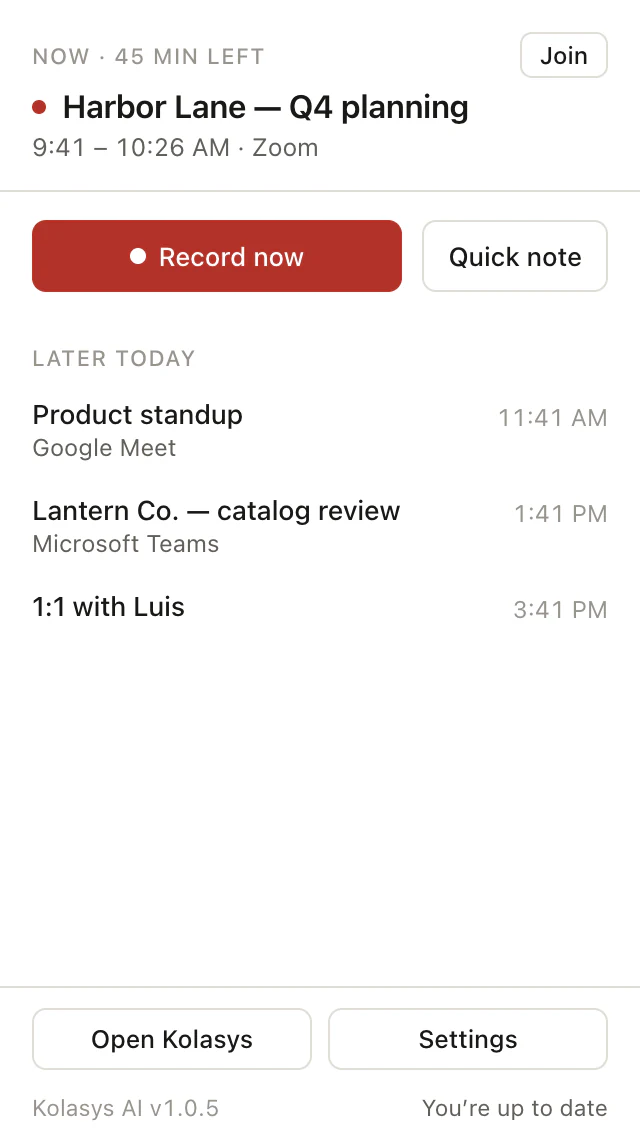
Your calendar, connected
Connect Google Calendar or Microsoft 365. Upcoming meetings show on the web, in the Mac menu bar, on iPhone and on your watch.
ExampleHome shows “Harbor Lane — Q4 planning, in 25 min” with a button to send a bot.
Prep next meeting
A built-in Shortcut that reads your next calendar event and your past meetings with the same people, then tells you what to pick up.
Example“Last time, Priya asked for a revised quote. Maya owes it; it is still open.”
People & Companies
Every person you meet, grouped by company, with each meeting you have had together. Attendees come from your calendar and the meeting itself.
ExampleLantern Co. → 6 meetings, last on Oct 2, with Marcus and Priya.
Meeting-start prompts on Mac
When a calendar meeting starts, the Mac app shows a banner and a notification with a Start recording button. You choose; it never records on its own.
Example“Northwind weekly is starting. Start recording?”
During the meeting
Pay attention. It’s recording.
Mac, iPhone, Apple Watch or the web. A bot only when you ask for one.
Record from your Mac menu bar
Captures your Mac’s audio and microphone, so Zoom, Meet, Teams or a phone call are recorded with no bot in the call and nothing for anyone else to install.
ExampleClick the menu bar icon, press Start, and talk to Luis on Zoom as normal.
Live transcriptionPro
Watch the words appear as people speak, in the Mac app. Included with Pro and Team.
ExampleMarcus: “Let’s lock January 12 for the launch.” shows up on screen as he says it.
Record on iPhone
Record in person, on a call, or next to a laptop. Share a Voice Memo or any audio file to Kolasys from the share sheet to transcribe it.
ExampleA coffee with Maya, recorded on the phone in your pocket.
Record on your Apple Watch
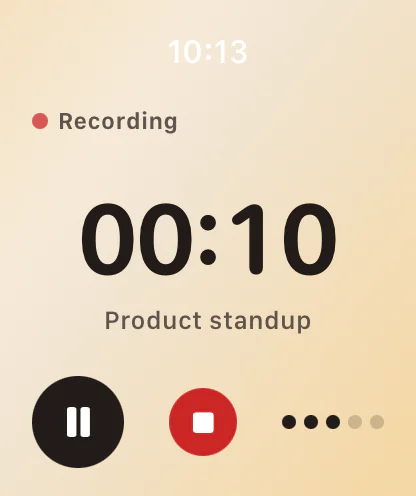
Tap Start Kolasys or the watch-face complication and the watch records on its own, with a timer, even with your phone in another room. It syncs to your iPhone afterwards, and the notes show up on the watch.
ExampleTap the complication as the Lantern Co. walkthrough begins and leave your phone at your desk.
Send a bot when you can’t be there
Send a notetaker to a Zoom, Google Meet or Microsoft Teams link, or let it join your calendar meetings automatically. It is optional and you can turn it off.
ExampleYou are double-booked, so the bot sits in on Northwind’s design review for you.
Record or upload on the web
Record from your browser, or upload an audio file (MP3, M4A, WAV and more). Pick the language per recording, or let it detect it.
ExampleUpload last week’s board call and get notes in a few minutes.
15 languages
English, Spanish, French, German, Portuguese, Italian, Dutch, Russian, Polish, Swedish, Japanese, Chinese, Korean, Arabic and Hindi, plus auto-detect.
ExampleSet Spanish as the workspace default; switch one recording to English.
After the meeting
Notes, owners and answers, minutes later
Everything a good note-taker would hand you, plus a way to ask questions across every meeting you’ve had.
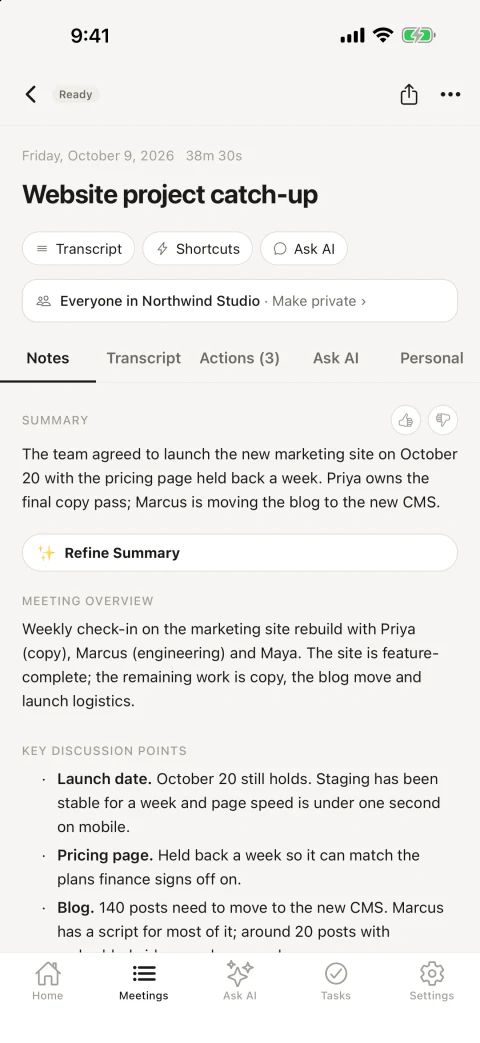
AI meeting notes
A summary, the main discussion points, decisions, open questions and next steps, written by Claude. Edit any section by hand.
ExampleDecisions: “Catalog launch fixed for January 12.”
Templates per meeting type
Shape notes for one-on-ones, sales calls, standups and more. Templates apply themselves when a meeting’s title or attendees match, or regenerate notes with a different one.
ExampleAnything titled “1:1” gets the one-on-one template automatically.
Action items with owners
Each to-do comes out with an owner and a priority. Track them in one list and tick them off on any device.
ExampleSend the revised quote — Maya · High.
Transcript with speakers
Every word, labeled by speaker, with timestamps. Name the speakers once and the notes use the names.
ExampleRename “Speaker 2” to Priya and every action item updates.
Ask AI
Ask about one meeting, a folder, or everything. Answers cite the passages they came from, and conversations are saved so you can pick a thread back up.
Example“What did we promise Harbor Lane?” → three commitments, each linked to the transcript.
Insights
Open the Insights tab on a finished meeting and Claude pulls out follow-up questions worth asking, risks and blockers, who committed to what, and the mood of the room (positive, neutral, mixed or a concern) with a few words that sum it up. It’s generated on demand when you open the tab, on every plan.
ExampleHarbor Lane renewal call → Risk: Lantern Co. may not deliver the catalog photos before January 12. Commitment: Luis sends the revised quote by Friday. Mood: mixed.
Shortcuts
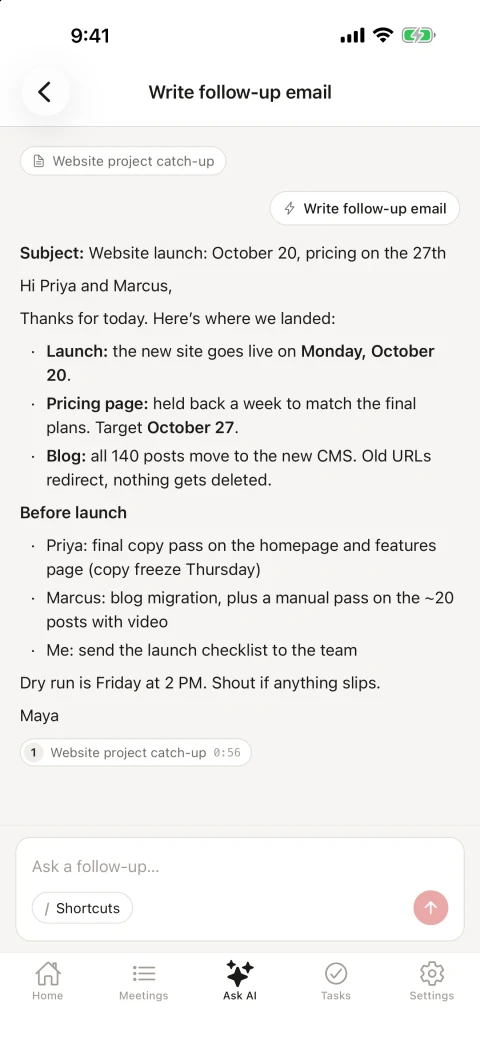
Saved prompts you run in one tap. Eight are built in, including Write TLDR, Write follow-up email, List my to-dos, Blind spots and Recap my week. Make your own and share them with your workspace.
ExampleRun “Write follow-up email” on the Harbor Lane meeting and paste the draft.
Semantic search
Search every meeting by meaning, not just keywords.
Example“When did we talk about the trade show?” finds it even if nobody said “trade show.”
Meeting series & folders
Recurring meetings group into series on their own. Put any meetings in a folder and ask questions across it.
ExampleA “Lantern Co. onboarding” folder with five calls, summarized in one go.
Soundbites
Clip a moment from the transcript and keep it with the meeting.
ExampleSave Marcus’s 40 seconds on the new pricing for the team.
Private by default, shared on your terms
New meetings are visible only to you. Share one with your workspace in a click, or make a public link for someone outside it.
ExampleKeep a one-on-one private; share the Harbor Lane call with Northwind Studio.
Email and push when notes are ready
A post-meeting email with the summary, an optional daily digest, and a notification on your iPhone and watch.
ExampleYour wrist taps: “Notes ready: Harbor Lane — Q4 planning.”
Slack, Notion and webhooks
Shared meetings post to a Slack channel or a Notion database, and fire a signed webhook to anything else.
ExampleThe Harbor Lane notes land in #harbor-lane as soon as you share them.
REST API and MCP
Read meetings, transcripts and action items over a REST API, or connect Claude Code, Cursor or another MCP client to your meetings.
ExampleIn Cursor: “list my open action items from this week.”
AnalyticsPro
How many meetings you have each week, how long they run, and who does the talking. Included with Pro and Team.
ExampleTalk time this month: Maya 38%, Luis 31%, Marcus 18%.
Imports
Bring past meetings from Fireflies (ZIP), Otter (TXT or SRT), Fathom (CSV) and Read AI (PDF).
ExampleDrop in a Fathom export and two years of calls become searchable.
Light, Dark and Color
Three appearances on the web, Mac and iPhone. Pick the one you like.
ExampleColor on the Mac, Dark on the phone.
Start free — 3 meetings a month, no card
Download the Mac app, or start on the web. Upgrade when you need more.