Connect your calendar
Connect Google Calendar or Microsoft Outlook so your upcoming meetings show in Kolasys, ready for the bot, the desktop app and your prep notes.
Connect Google or Outlook
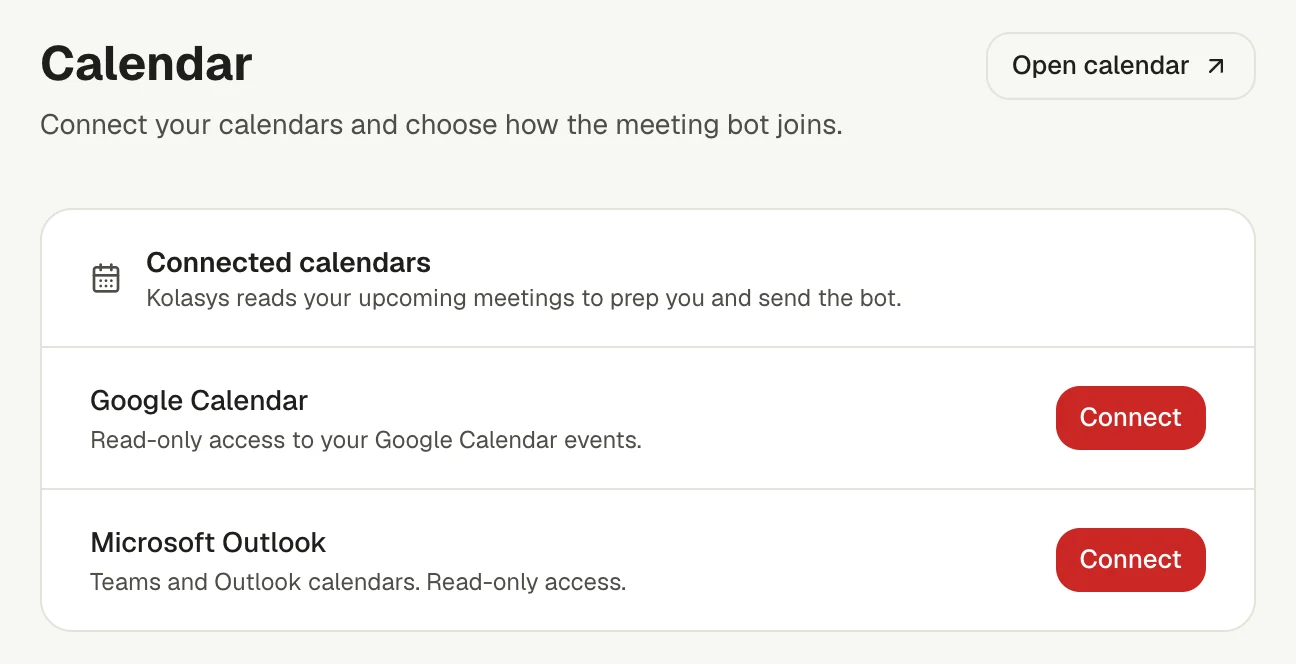
- Go to Settings › Calendar.
- Under Connected calendars, click Connect next to Google Calendar or Microsoft Outlook.
- Sign in to that account and allow access.
You come back to the Calendar page, which lists your upcoming meetings. You can connect both, and each person in the workspace connects their own.
What connecting does
- Home shows what’s Coming up over the next two weeks. Click a meeting to open its page and write prep notes.
- The Calendar page (Open calendar in Settings › Calendar) has a Send Bot button next to each meeting with a video link.
- The desktop app names recordings after the meeting on your calendar, and can ask to record when one starts.
The bot may start joining your meetings
Automatically record meetings is on by default for a new workspace. While it’s on, the bot joins every meeting on your connected calendar that has a Zoom, Google Meet or Microsoft Teams link. Workspace owners and admins can turn it off. See Record calendar meetings automatically.
Disconnect or reconnect
Go to Settings › Calendar and click Disconnect next to the calendar. Meetings already recorded stay. The bot stops joining meetings from that calendar.
If the Calendar page says your token has expired, click Reconnect Google Calendar (or Reconnect Microsoft Calendar). For other problems, see My calendar isn’t syncing.
Was this helpful?
Still need help?
Email hi@kolasys.ai from the address on your account and we’ll reply by email.