Add pages, icons and covers
Add pages to a Space or to Private, nest them inside each other, start from a template, and give them an icon and a cover.
Add a page
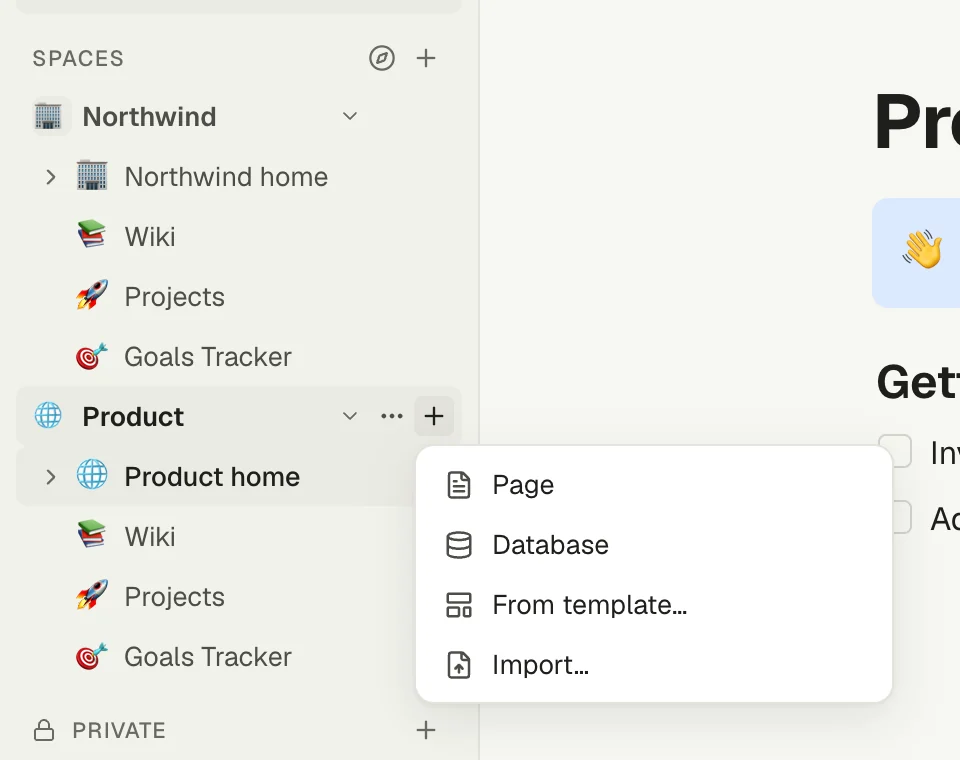
- Hover over a Space in the sidebar and click + (Add to Space). To put it under another page, use the + on that page (Add a page inside). For a page only you can see, use the + on Private.
- Choose Page, Database, From template… or Import….
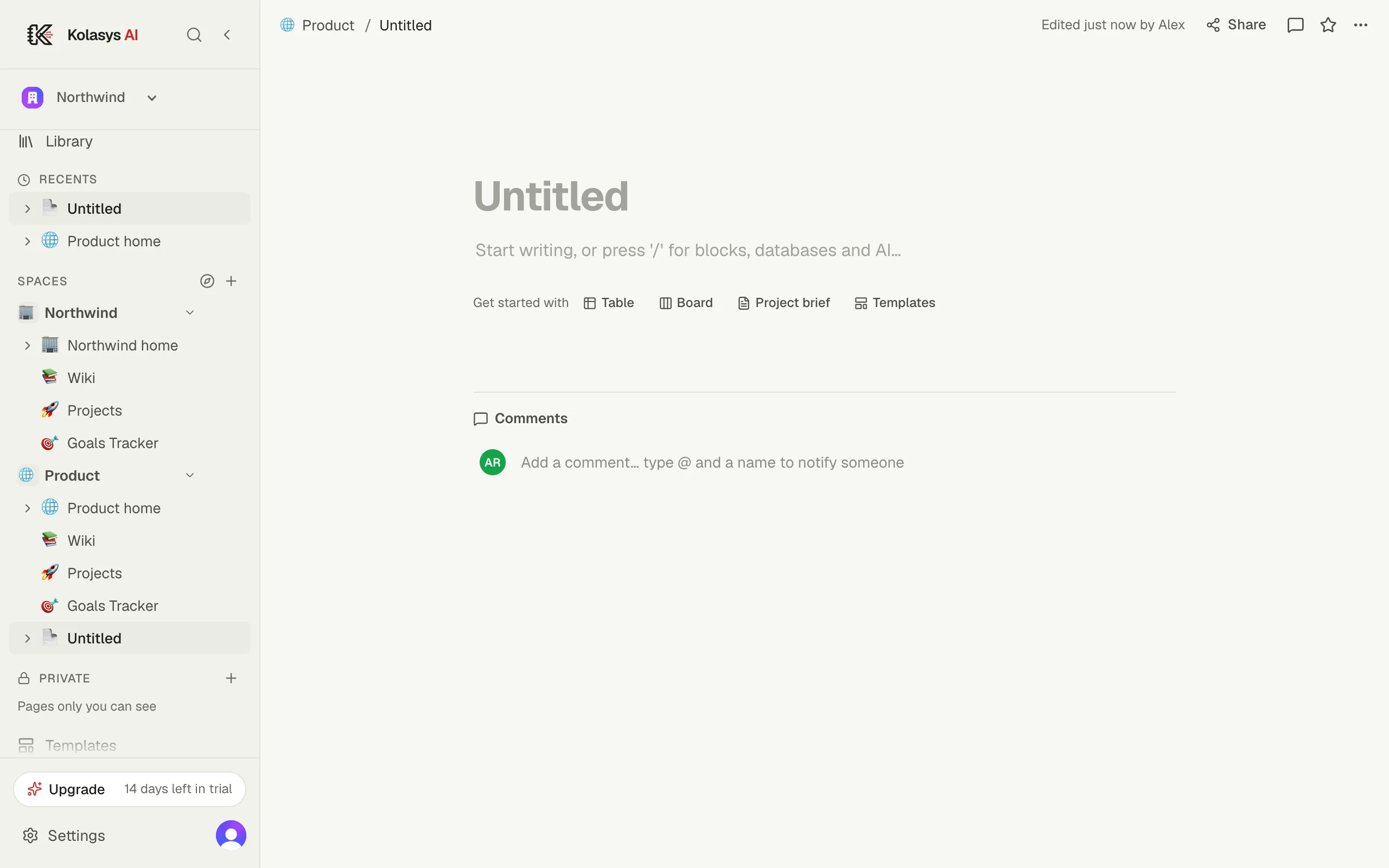
- Type a title and start writing.
A new, empty page offers shortcuts under Get started with: Table, Board, Project brief and Templates.
Start from a template
Click Templates at the bottom of the sidebar. Pick one (Projects, Goals Tracker, Team Wiki, Space starter kit, Blank database, Project brief doc or Weekly 1:1 doc), choose where it goes under Add to, then click Use this template.
Icons and covers
Hover over the page title to add an icon: pick an emoji, or Upload an image. To add a cover, choose a gradient, upload a picture or paste an Image link. Hover over the cover for Change cover and Remove.
Rename, move and duplicate
Hover over a page in the sidebar and click ••• for Add to favorites, Rename, Duplicate, Move to, Copy link and Move to trash. You can also drag pages to reorder them or drop one onto another to nest it.
Was this helpful?
Still need help?
Email hi@kolasys.ai from the address on your account and we’ll reply by email.