Your meeting page
Everything about one meeting in one place: the notes on the left, the transcript, Ask Kolasys, insights and soundbites on the right, and the meeting’s controls along the top.
Open a meeting from Home, Meetings or search. Anyone who can open the meeting sees the same page, with two exceptions: your own notes and your prep notes are only ever shown to you.
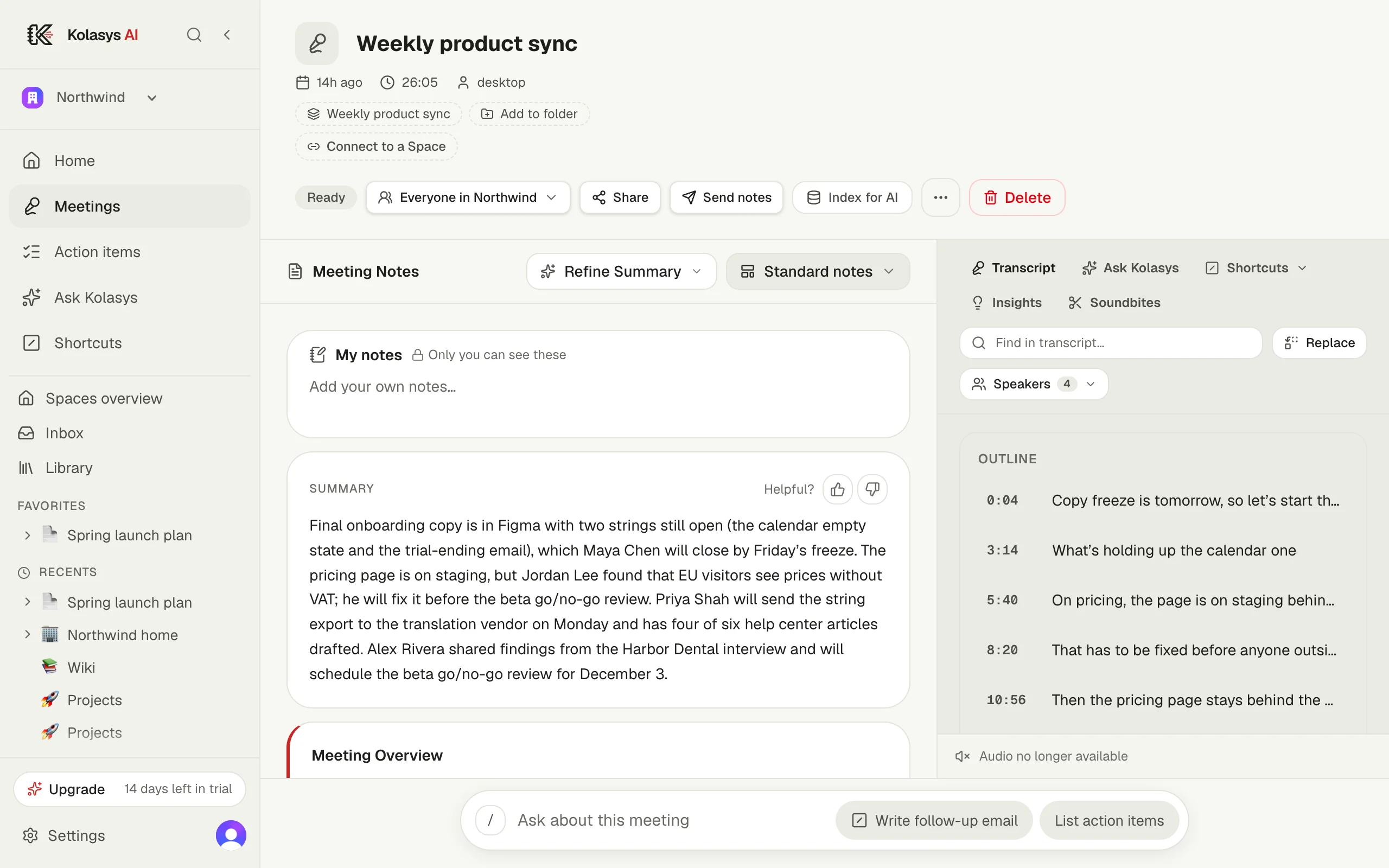
The top of the page
- The title: click it to rename the meeting.
- When it happened, how long it was and how it was recorded, and how many people the notes were emailed to, if any.
- The meeting’s folders and Add to folder. See Folders and series.
- Who can see it: Only me, or Everyone in followed by your workspace’s name. See Who can see a meeting.
- Share and Send notes, once the notes are ready. See Share a meeting with a link and Send notes to attendees.
- Index for AI on wide screens, the ⋯ menu, and Delete if you recorded the meeting or you’re a workspace owner or admin. See Delete a meeting.
The notes side
Meeting Notes fills the left side. At its top are Refine Summary and the template button, which names the template that wrote the notes (Template: Board Meeting, or Standard notes). Below, in order:
- Your prep notes: what you wrote on the calendar event before the meeting. Only you see these.
- My notes: your own notes on this meeting. Only you see these.
- Summary, with Helpful? thumbs to tell us how it did.
- The sections the template asked for, like Key decisions or Next steps.
- Action Items. See Action items.
- People & Topics mentioned in the meeting.
To change any of it, see Edit, refine and restore notes and Choose and create note templates.
The right side
- Transcript: every word, by speaker. See The transcript and speaker names.
- Ask Kolasys: questions about this meeting. See Ask Kolasys about your meetings.
- Shortcuts: run a saved prompt on this meeting. See Shortcuts: saved prompts.
- Insights and Soundbites, once the notes are ready. See Soundbites and insights.
The audio player sits at the bottom of the right side. Press play, or click a time in the transcript to play from there.
The ⋯ menu
- Index for AI (on smaller screens): lets Ask Kolasys search this meeting.
- Regenerate title: writes a fresh title from the transcript.
- Re-transcribe: redoes the transcript, then the notes.
- Find & replace and Undo last replace: change a name or word everywhere in the meeting.
- Restore previous version: puts back the notes as they were before the last rewrite.
Each is explained in Edit, refine and restore notes.
On a phone or a narrow window
The page shows one side at a time, with tabs across the top: Notes, Transcript, Ask Kolasys, Insights and Bites (soundbites).
While a meeting is processing
A bar under the header says what’s happening: Transcribing your recording…, then Generating meeting notes…. The page updates by itself when the notes are ready. While the meeting bot is still in the call, it says Recording in progress or where the bot is, like waiting to be let in.
Was this helpful?
Still need help?
Email hi@kolasys.ai from the address on your account and we’ll reply by email.