Ask Kolasys about your meetings
Ask a question about one meeting, a folder or everything you’ve recorded, and get an answer that links to the meetings it came from.
Ask Kolasys works on every plan. It only ever reads meetings you can open.
Where you can ask
- Ask Kolasys in the sidebar: questions across all your meetings.
- The ask bar at the bottom of Home, a meeting’s page and a calendar event’s page.
- The Ask Kolasys tab on a meeting’s page.
- The box on a folder’s page, like Ask about “Launch” — type / for Shortcuts.
- Quick search: press ⌘K (Mac) or CtrlK (Windows), type your question and choose Ask Kolasys, the last row.
For meetings connected to a Space, see Ask about a Space.
Ask a question
- Click Ask Kolasys in the sidebar.
- Type your question, like “What did we decide about the launch date?”, and press Enter. Use ShiftEnter for a new line.
- Ask follow-ups in Ask a follow-up at the bottom. Kolasys remembers the conversation so far.
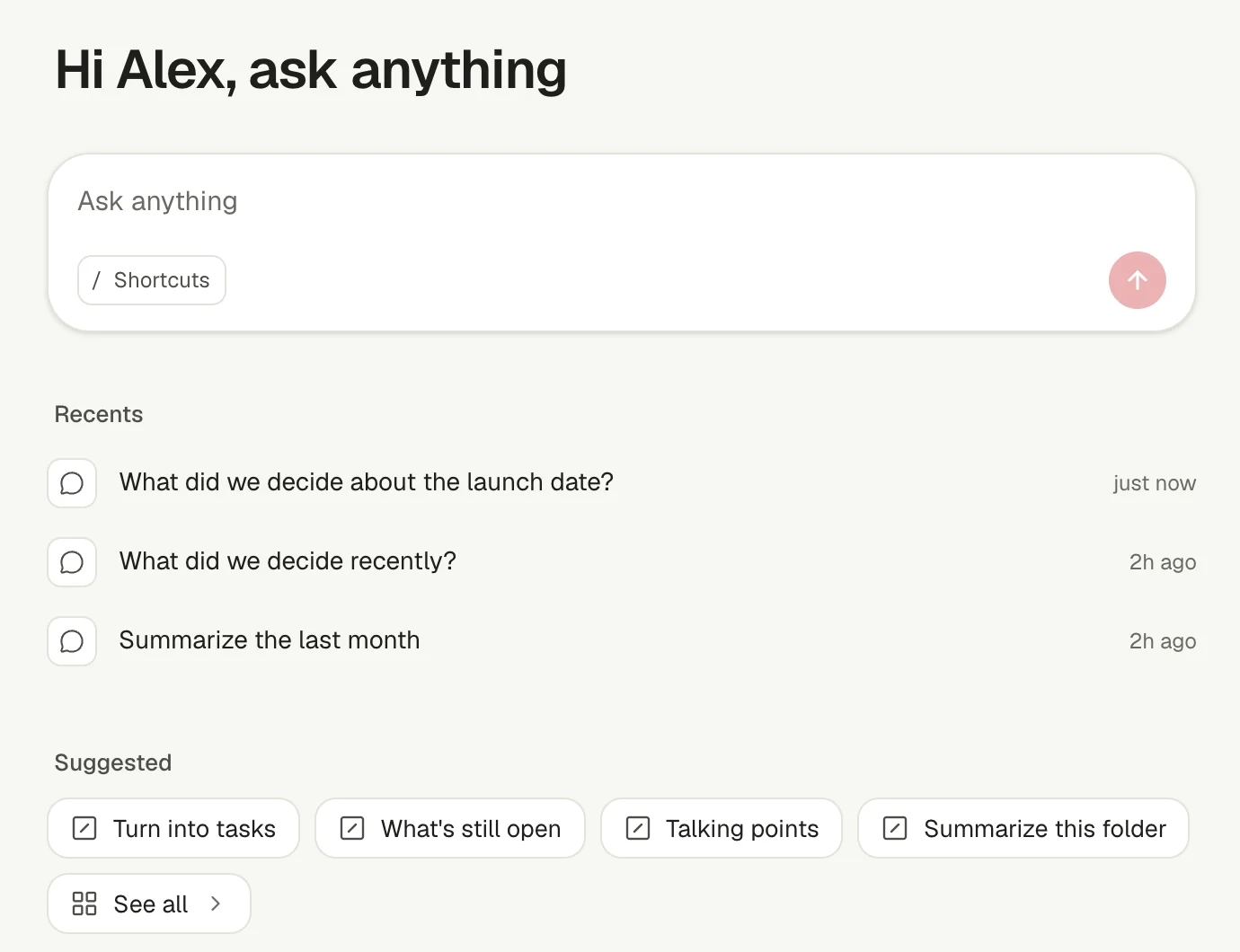
Below the box are your Recents and a row of Suggested Shortcuts, with See all. Type / to run a Shortcut instead of typing a question. See Shortcuts: saved prompts.
What it reads
- Ask Kolasys page, Home and quick search: your meetings from the last 14 days, open action items, and a search of all your meetings for the parts that match your question.
- A meeting’s page: that meeting’s notes, action items, attendees and transcript.
- A folder’s page: the meetings in that folder.
- A calendar event’s page: everything, like Home, with Prep me for this meeting and Last time we met to get ready for it.
Every answer is limited to meetings you can open: your own, and the ones shared with you. A teammate asking the same question can get a different answer.
Check the answer
Under each answer, numbered chips show the meetings it used, with the time in the meeting where that helps. Click one to open the meeting.
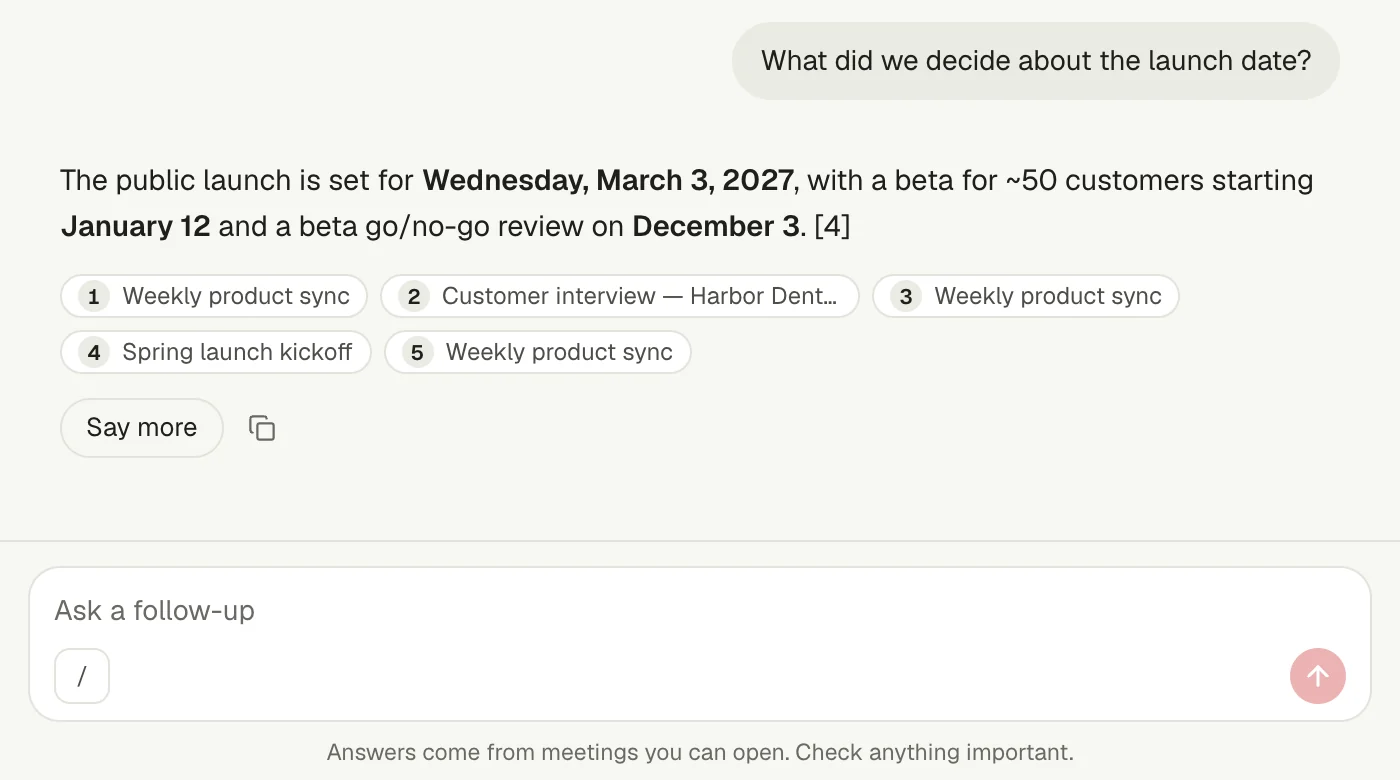
- Say more asks for more detail.
- The copy button copies the answer.
Ask about one meeting
- Open the meeting and click the Ask Kolasys tab on the right.
- Pick a suggestion, like What were the key decisions made?, or type in Ask about this meeting.
The ask bar at the bottom of the page continues the same conversation, and offers Write follow-up email and List action items. Earlier chats lists your past conversations about this meeting. Click Open in Ask Kolasys to see the conversation full page, or New chat to start over.
In the ask bar, click × or press Esc to fold the answer away. The conversation is kept, and Open full chat opens it on the Ask Kolasys page.
Your conversations
Conversations are saved and private to you. Nobody else in your workspace can see them. Find them under Recents on the Ask Kolasys page.
- Click the pencil at the top of a conversation to rename it.
- Click the bin to delete it. This can’t be undone.
- Click New chat to start a fresh one.
If a meeting a conversation was about is no longer shared with you, it says Meeting no longer shared with you and you can’t ask more in it.
If a meeting is missing from answers
Kolasys indexes each meeting for Ask as soon as its notes are ready. If questions across your meetings don’t seem to find one, open it and click Index for AI at the top (in the ⋯ menu on smaller screens). When it says Indexed, ask again.
Was this helpful?
Still need help?
Email hi@kolasys.ai from the address on your account and we’ll reply by email.