The transcript and speaker names
Read and play the transcript, find a word in it, and put real names on the speakers, so the notes and action items use them too.
Read and play the transcript
The Transcript tab is on the right of the meeting page. At its top, Outline lists the main moments: click one to jump there. Then come the speakers, and every line with its time.
- Click a line’s time to play the audio from there.
- When the transcript has word timings, click any word to play from that word. The word being spoken is highlighted.
- The audio player is at the bottom of the right side.
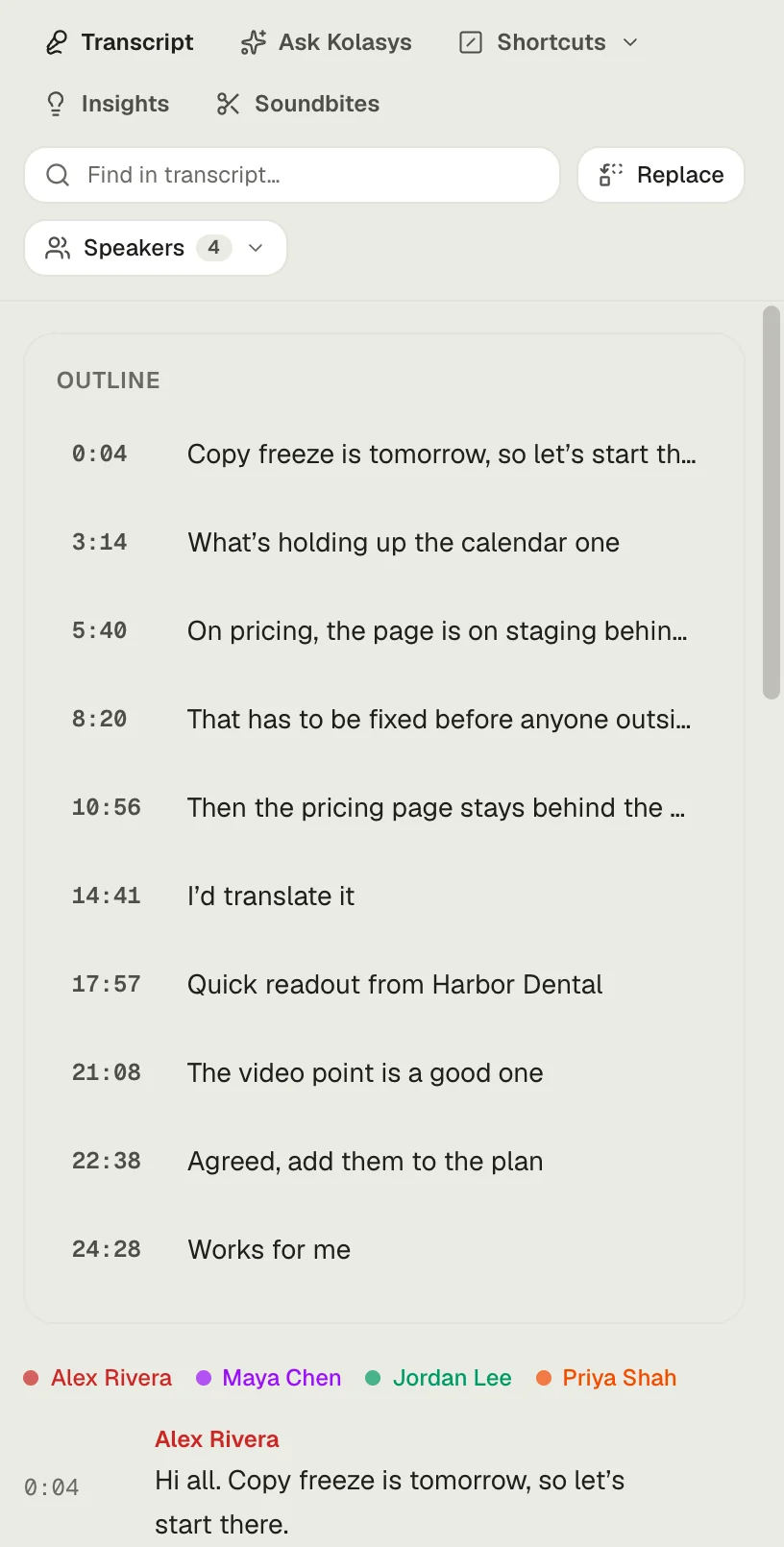
Find a word
Type in Find in transcript…. Every match is highlighted and you see a count like “3 of 12”. Press Enter or ↓ for the next match, ShiftEnter or ↑ for the previous one, and Esc to clear. It searches the whole transcript, not only the part on screen.
To change a word everywhere, click Replace. See Edit, refine and restore notes.
Rename a speaker
- On the Transcript tab, click Speakers. It lists everyone who spoke and how many lines each has.
- Click the pencil next to a speaker, type their name and press Enter.
- Leave Also change the old name in the summary, notes and action items ticked to update those too.
You can also click a speaker’s name in the row above the transcript. Renamed the wrong person? Click Undo under the list.
Some names are filled in for you, with where they came from: from Zoom, from Google Meet or from Teams when the meeting bot recorded the call, your mic for you on a desktop recording, or auto when Kolasys worked it out from the conversation.
Speaker names to check
When Kolasys guesses a name, a Speaker names to check box appears above the transcript, with the words that gave it away:
- “Speaker 2 is probably Maya”: click Confirm to use the name everywhere, or Not them so it isn’t suggested again.
- A name it already applied (named automatically): click Keep, or Undo to go back to the numbered speaker.
When there are no speakers
Sometimes a transcript isn’t split by speaker, and Speakers says No speaker labels. Speaker labels aren’t available in every language. The transcript is still complete. To fix a name in it, use Find & replace…. See Languages and names Kolasys should know.
Was this helpful?
Still need help?
Email hi@kolasys.ai from the address on your account and we’ll reply by email.