Choose and create note templates
A template sets the headings in a meeting’s notes and how each is written. Use one on a meeting, make one your default, let Kolasys apply it when a meeting matches, or make your own.
What a template does
A template decides the headings in your notes (like Decisions, Risks or Next steps), what goes under each, and the layout: paragraphs, bullets, to-dos, a table or quotes. Kolasys only writes what was said in the meeting, whatever the template asks for. Templates work on every plan.
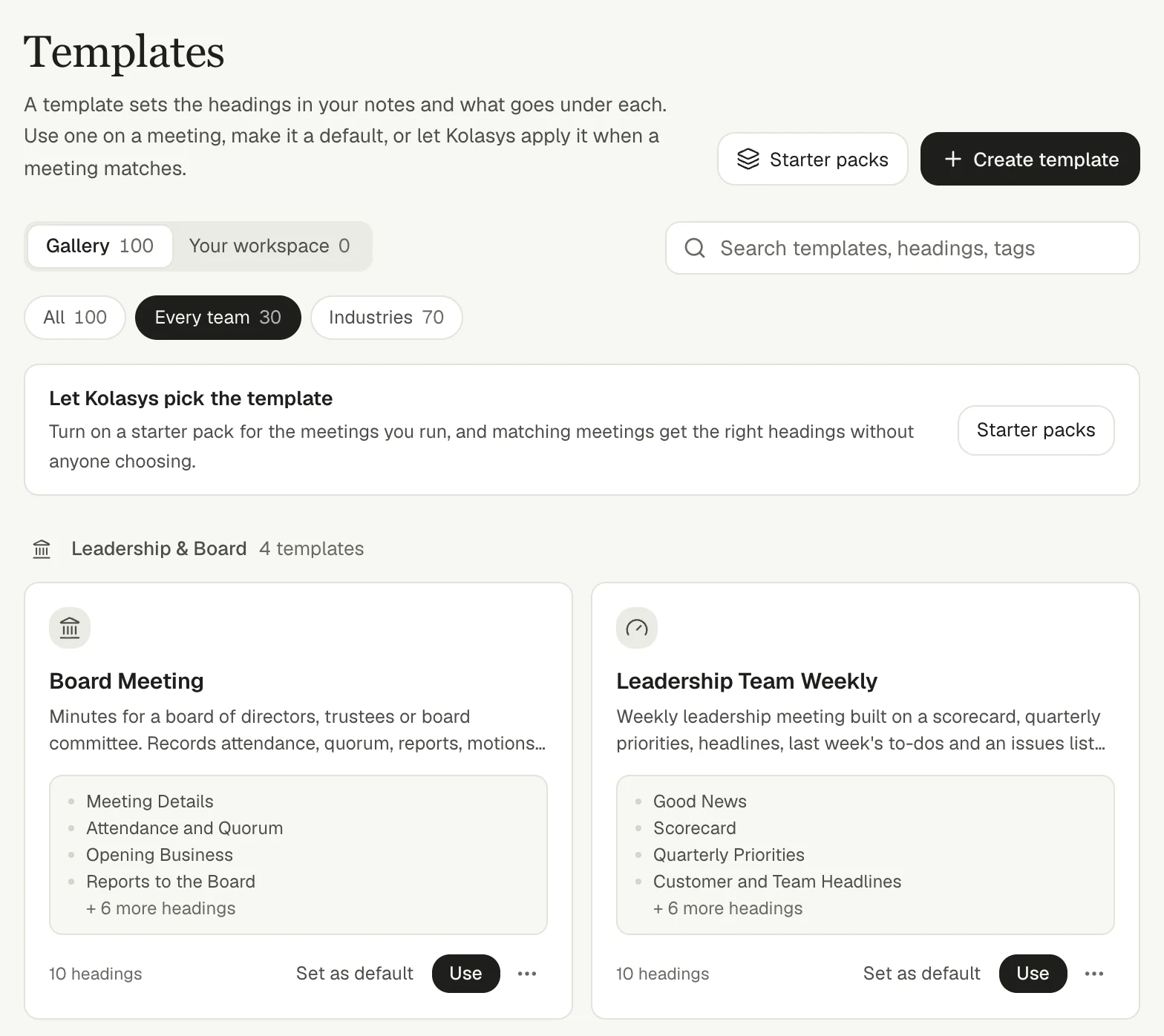
All templates live in Settings › Templates. Gallery has the built-in ones, by industry and team; Your workspace has the ones your team made. Search with Search templates, headings, tags.
Rewrite a meeting’s notes with a template
- Open the meeting.
- At the top of the notes, click the template button (Standard notes or Template: …) and choose Change template….
- Pick a template: search, or filter by All, Every team or Industries. If some fit this meeting, they’re listed first under Suggested. The right side shows the Headings in your notesyou’ll get.
- Click Use followed by the template’s name.
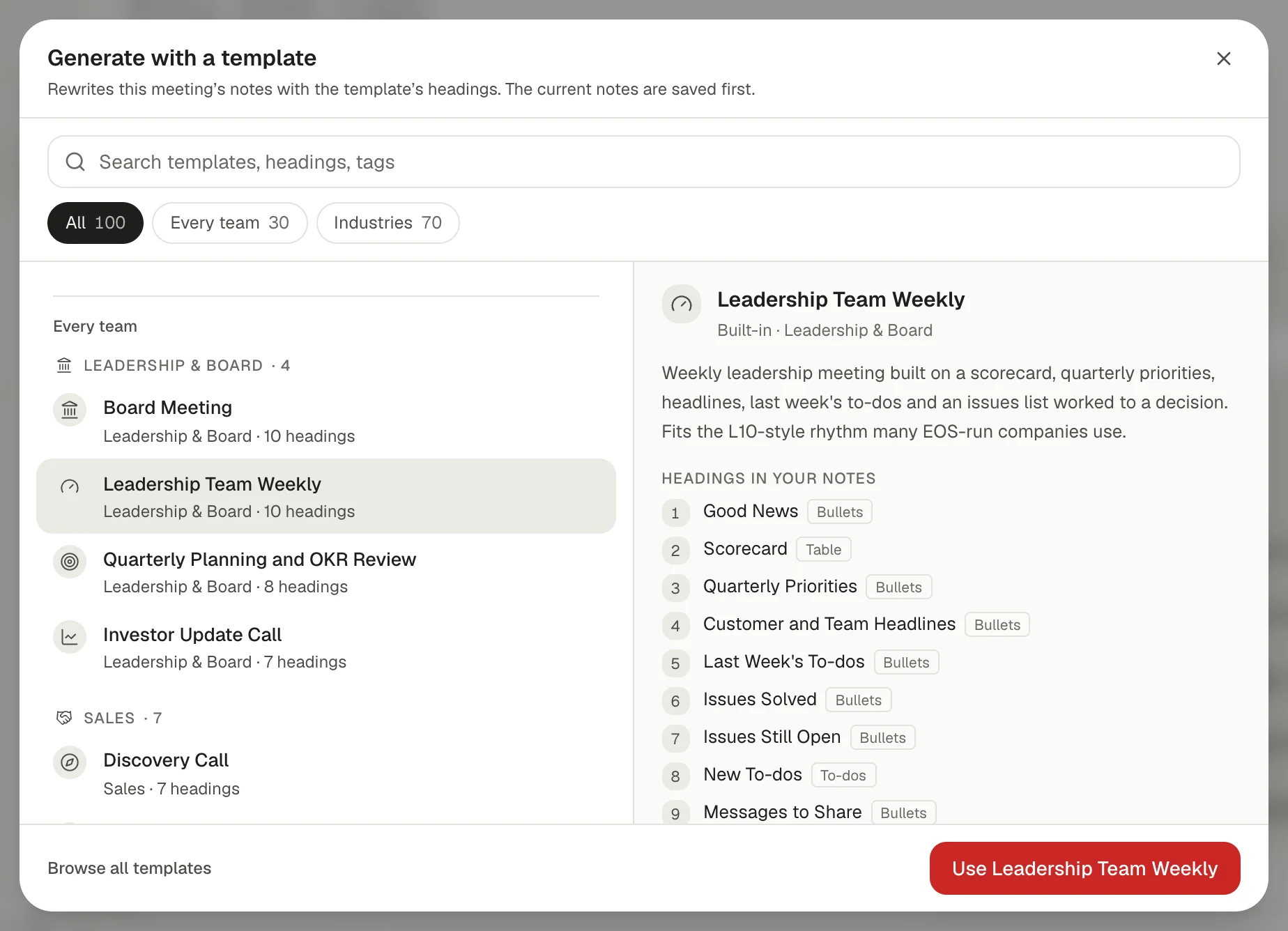
The notes are rewritten, and the page updates when they’re ready. If someone edited a section, you’re asked first, in Regenerate with …?: their edits are replaced, but a copy is saved, and action items people ticked, changed or added stay.
You can also start from the template: click Use on its card in Settings › Templates, then pick one of your recent meetings.
Pick a template before you record
In New Recording on the Meetings page, open Notes template and choose one. Leave it on Automatic to let your rules and defaults decide. Next to Automatic you can see which template that will be.
Which template a meeting gets
When a meeting’s notes are first written, Kolasys uses the first of these that applies:
- The template someone picked for it in New Recording.
- A template that applies automatically and matches the meeting’s title or attendees.
- Your own default.
- The workspace default.
- The standard headings.
Set a default
On a template’s card, click Set as default, or open its ⋯ menu and choose Set as my default or Set as workspace default. Your default is used for meetings you record; the workspace default is used for everyone who hasn’t set their own. Only workspace owners and admins can set the workspace default.
Apply a template automatically
A template can apply itself when a meeting matches, for example every meeting with “QBR” in the title. There are two ways:
- Starter packs: turn on a pack for your industry or team, and its templates apply themselves to matching meetings. Nothing changes until you turn one on.
- One built-in at a time: open it and turn on Apply automatically. Click Edit rule to change what it matches.
Only workspace owners and admins can turn starter packs and built-in templates on or off. Your workspace’s own templates apply through the rules you give them, below.
Make your own template
- In Settings › Templates, click Create template. Or open a built-in and click Duplicate and edit to start from it.
- Give it a Name, a Category and, if you like, a one-line Description.
- Under Instructions, say how the notes should be written: tone, level of detail, what to keep apart, what to leave out.
- Under Headings, name each heading, say what goes under it, and pick a layout (Paragraph, Bullets, To-dos, Table or Quotes). Use Add heading for more, and the arrows to reorder them.
- To have it apply itself, click Add rule under Apply automatically when: choose Title or Attendees, then the words to match, like
qbr|business review. When several templates match, the highest priority wins. - Click Create template.
Your template is shared with the whole workspace, and anyone in it can edit or delete it. Deleting a template doesn’t change notes already written with it. A copy of a built-in never changes by itself; if we improve the built-in, your copy shows Update available.
Clinical, legal and investigation templates
Notes from these templates carry a Draft for professional review label, and new meetings set up with them start private. The first time someone in your workspace uses one, Kolasys shows what to check first.
If you apply one to a meeting your whole workspace can see, you’re asked Make this meeting private? Choose Make private and apply or Keep shared. Only the person who recorded the meeting or a workspace admin can make it private.
Was this helpful?
Still need help?
Email hi@kolasys.ai from the address on your account and we’ll reply by email.