Share a meeting with a link
Turn on a link to a meeting’s notes for people outside your workspace. Choose who can open it, what they see and when it expires.
Turn on the link
- Open the meeting and click Share at the top. Or, on the Meetings list, click the meeting’s ••• and choose Share…
- On the Share link tab, turn on the switch next to Only members can view.
- Click Copy next to the link.
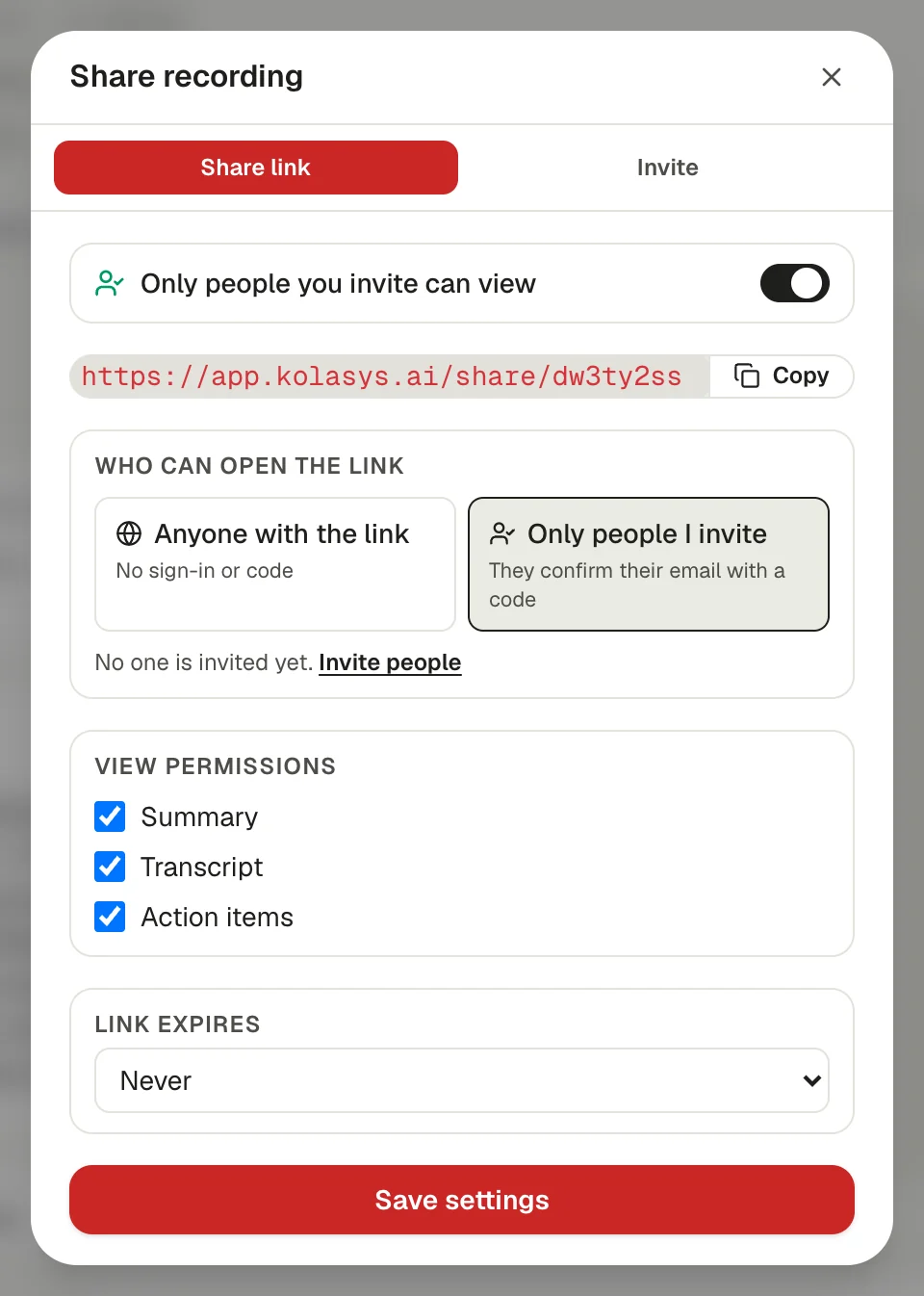
Share appears once a meeting’s notes are ready. While the link is on, the button reads Sharing. Sharing by link works on every plan, and for private meetings too: it doesn’t change who in your workspace can see the meeting.
Choose who can open it
Under Who can open the link:
- Anyone with the link: no sign-in and no code. Anyone who gets the link, including from a forwarded email, can read it.
- Only people I invite: only the email addresses you invite. They confirm their address with a code each time they open it in a new browser.
This changes as soon as you click it.
Choose what people see
- View permissions: tick Summary (the summary and the note sections), Transcript and Action items.
- Link expires: Never, 7 days, 14 days or 30 days, counted from when you save.
Click Save settings to apply them.
Invite people by email
- Open the Invite tab. The link has to be on.
- Type an email address and click Invite. They get an email with the link.
Each person on the list shows Not sent, Sent or Opened, with buttons to send the invite again or remove it. Removing someone stops them opening an invite-only link. If the link is open to anyone, Make it invite-only switches it in one click.
What people see
A page with the meeting’s title, date and length, and whichever of the summary, action items and transcript you allowed. They can read it, not edit it, and there’s no audio.
On an invite-only link, they first see “These notes are private”:
- They type their email and click Send code.
- They enter the 6-digit code from the email (it expires after 10 minutes) and click Open the notes.
After that the link opens without a code in that browser for 30 days. People in your workspace who can see the meeting open it without a code when they’re signed in.
Turn the link off
Click Share and turn the switch off. The link stops working straight away, and everyone who confirmed a code has to do it again if you turn it back on.
A link past its expiry shows “This link has expired”. To email the notes to the people who were in the meeting, see Send notes to attendees.
Was this helpful?
Still need help?
Email hi@kolasys.ai from the address on your account and we’ll reply by email.