People and companies
See everyone you’ve met with and the companies they work for, with every meeting they were in. Fix a name or hide someone.
People
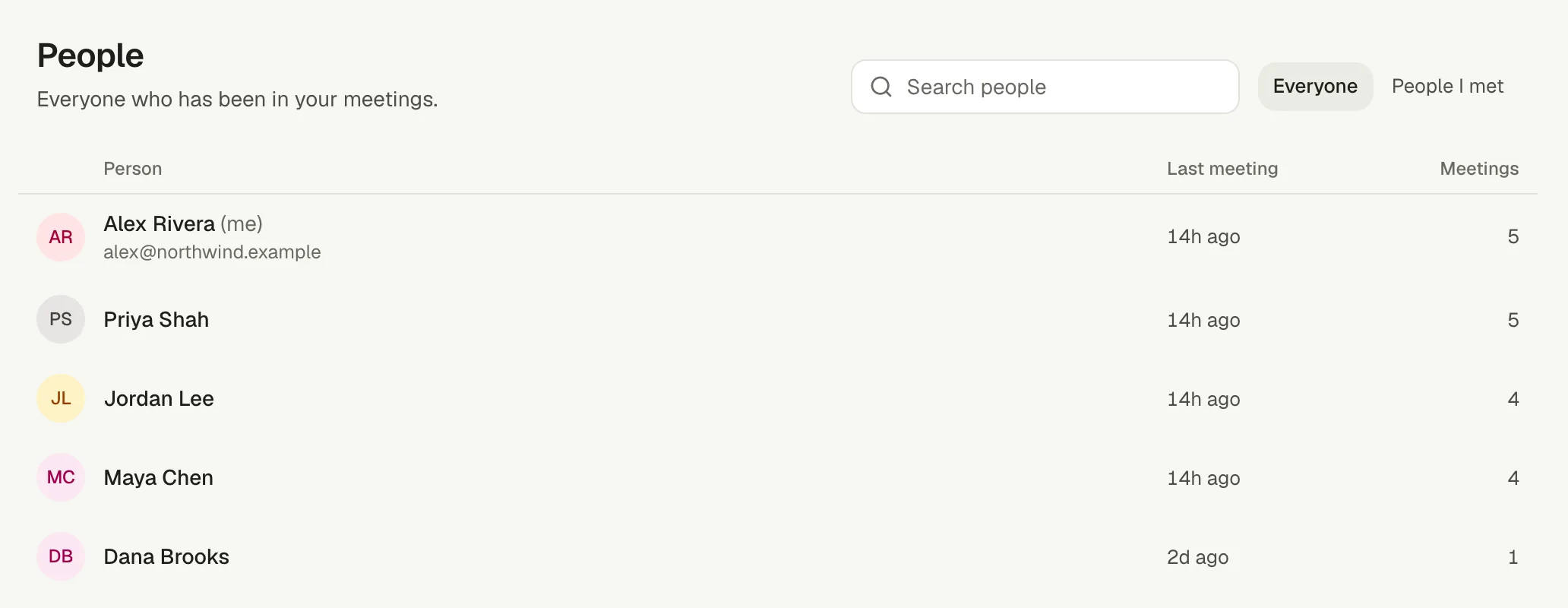
Click People in the sidebar. It lists everyone who has been in a meeting you can open, newest first, with when you last met and how many meetings you’ve had.
- Everyone: people from every meeting you can open, including teammates’ shared meetings.
- People I met: only people from meetings you recorded or were in.
Type in Search people to find someone by name or email. People also come up in quick search (⌘K on a Mac, CtrlK on Windows).
Companies
Click Companies in the sidebar. People are grouped by the domain of their email address, so everyone at harbordental.com is one company, named after the domain until you rename it. Personal addresses, like Gmail, aren’t grouped into a company. Switch between All and Companies I met.
A person’s or company’s page
Click a row. A person’s page shows their email, their company, when you first and last met, and every meeting they were in that you can open. A company’s page lists its people and all of their meetings.
Rename or hide
Rename
On their page, click Rename, type the name and click Save. Leave the box empty and save to go back to the original name.
Hide
Click Hide to take someone off the list, such as a meeting room or an assistant’s address. Their page then says Hidden from your People list. with Unhide. Hiding someone also takes them out of Companies.
Was this helpful?
Still need help?
Email hi@kolasys.ai from the address on your account and we’ll reply by email.