Search and filter your meetings
Jump to any meeting, person or page with quick search, search your meetings by what was said, and filter and sort the Meetings list.
Quick search
Press ⌘K on a Mac or CtrlK on Windows from anywhere in the app, or click the search icon in the sidebar. Before you type, it shows your Recent meetings and pages to Jump to. As you type, it finds:
- Meetings, by title or by words in the transcript.
- People, Companies, and Folders & series.
- Pages in the app, including Settings.
- Ask Kolasys, always last, to ask what you typed as a question.
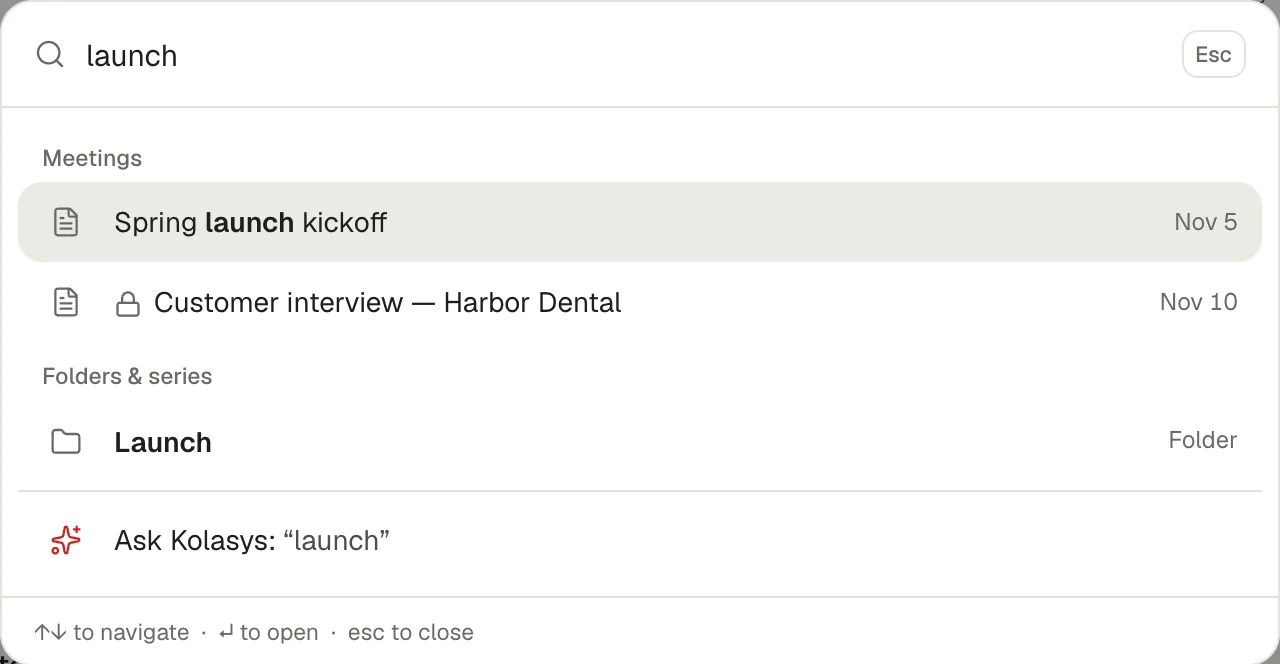
Use ↑ and ↓ to move, Enter to open, and Esc to close. Hold ⌘ (Mac) or Ctrl (Windows) as you press Enter to open it in a new browser tab.
Search on the Meetings page
- Click Meetings in the sidebar.
- Type in Search meanings, not just titles — press Enter, and press Enter.
Kolasys searches what was said, not only the words you typed: “pricing worries” can find a meeting where someone said the plan was too expensive. Results marked Semantic show how close each one is (% match) and the part of the transcript that matched. If nothing matches by meaning, you get meetings with your exact words instead, marked Text match.
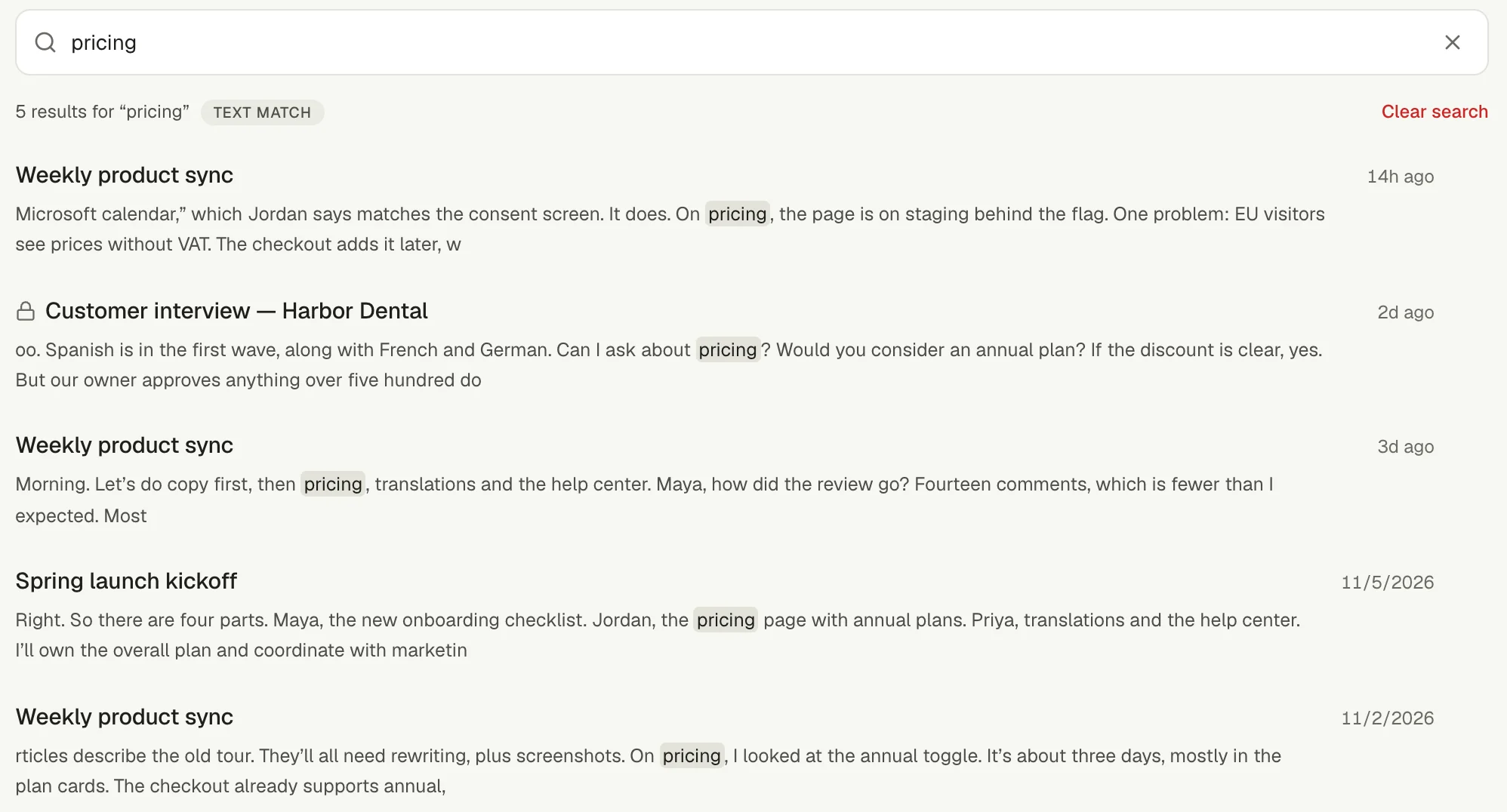
Filters are hidden while you search, because search looks across all your meetings. Click Clear search to go back to the list. To find a word inside one meeting, see The transcript and speaker names.
Filter and sort
- All (every meeting you can open), My meetings (ones you recorded) or Team (ones shared with everyone in your workspace).
- Source: Meeting bot, Desktop, Browser, Upload or Imported.
- A folder or series. See Folders and series.
- Date: Last 7 days, Last 30 days or Last 90 days.
- Sort: Newest first, Oldest first, Longest first, Shortest first or Title A–Z.
Click Clear to reset them. Meetings that failed to process are hidden at the bottom of the list; click the line that says how many to show them.
Save a view
- Set the filters and sort you want.
- Click Save view, type a name in Name this view… and click Save.
Your saved views appear as buttons under the filters: click one to apply it. To delete one, hover over it and click its ×. Views you save are only visible to you.
Was this helpful?
Still need help?
Email hi@kolasys.ai from the address on your account and we’ll reply by email.