Invite teammates and set roles
Invite people to your workspace by email or let anyone with your company’s email domain join, and choose who is an admin.
Invite by email
- Go to Settings › General and find Invites & members.
- Under Invite teammates, type their email address and pick Member or Admin.
- Click Send invite. They get an email with a personal link to join.
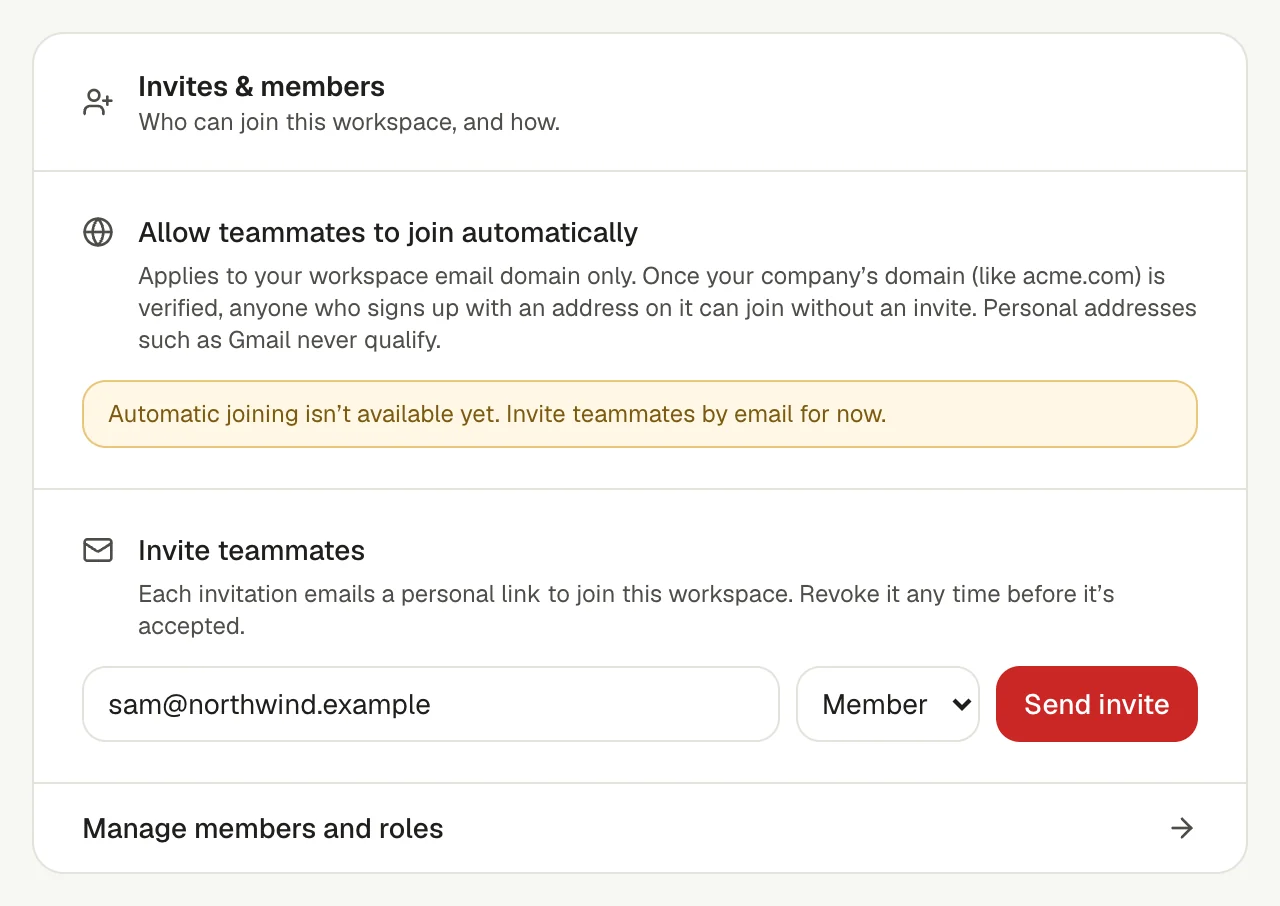
Invitations that haven’t been accepted are listed under Pending. Click Revoke to cancel one.
Let your company’s domain join
With Allow teammates to join automatically, anyone who signs up with an address on your company’s domain can join without an invite. Personal addresses such as Gmail never qualify.
- In Invites & members, type your domain (like acme.com) and click Add.
- Click Verify. If your own sign-in address isn’t on that domain, type one that is and click Send code, then type the code from that inbox and click Verify.
- Turn on the switch next to the verified domain, and choose whether teammates are invited automatically or offered the workspace to request.
If you see Automatic joining isn’t available yet., invite people by email instead.
See who’s in the workspace
Go to Settings › Members. The list shows each person’s Role, when they Joined, and Meetings shared: how many of their meetings everyone in the workspace can see. Their private meetings aren’t counted or shown.
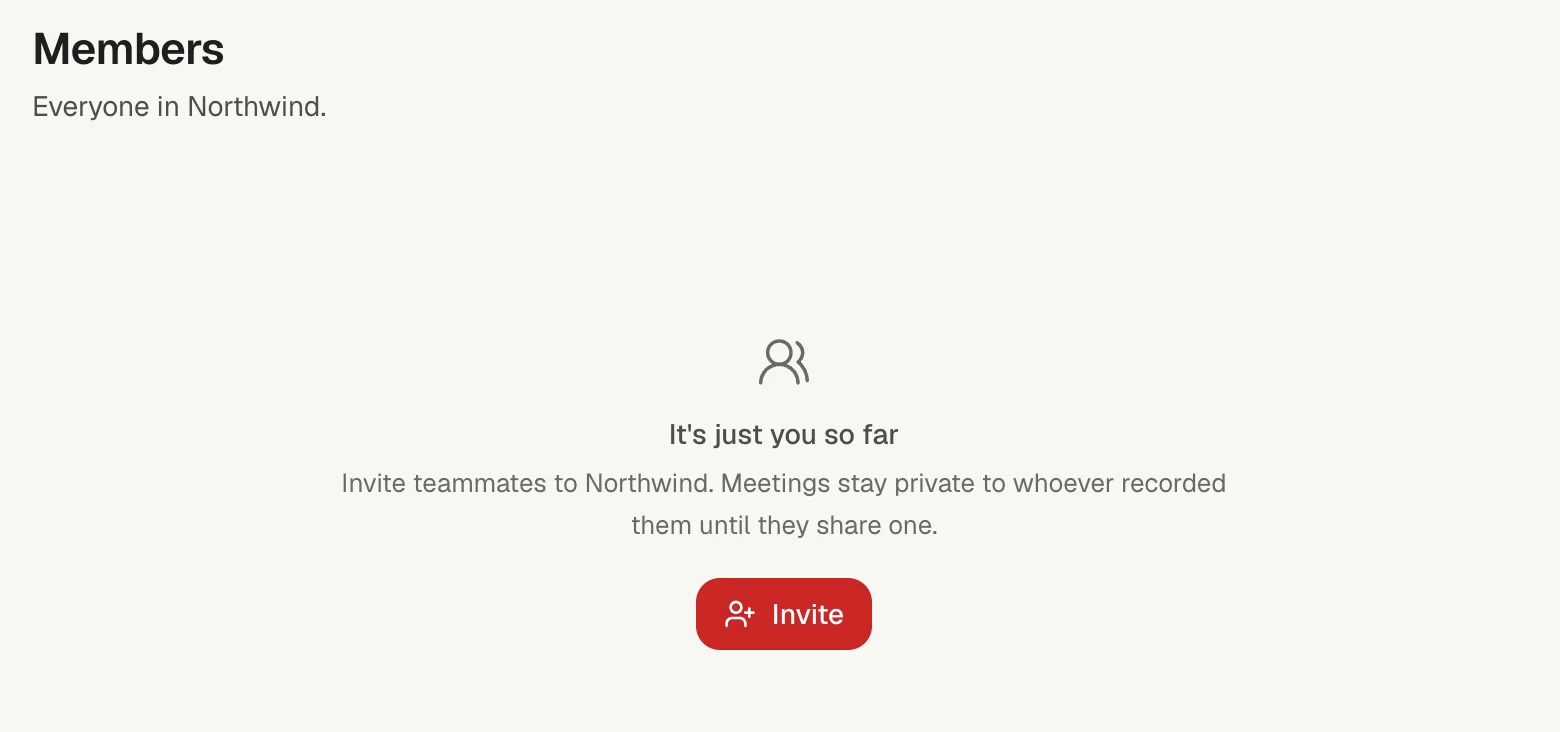
Until someone else joins, the page says It’s just you so far and has an Invite button instead.
Owners, admins and members
- Owner: the person who created the workspace. Can do everything an admin can, and is the only one who can delete the workspace.
- Admin: invites people, changes roles, and changes workspace-wide settings such as automatic recording, the meeting bot, the workspace’s emails and data retention.
- Member: records, shares and works on meetings, and changes their own settings. Sees workspace settings but can’t change them.
Roles don’t change who sees a meeting. New meetings are private to whoever recorded them until they share one, and that includes owners and admins. The one exception is the owner’s to make: they can let admins open members’ private meetings, view only, with every open logged. It’s off by default. See Who can see a meeting.
Change a role or remove someone
On Settings › Members, owners and admins click Manage roles. It opens the member list, where you can make someone an admin or a member, or remove them from the workspace.
Was this helpful?
Still need help?
Email hi@kolasys.ai from the address on your account and we’ll reply by email.